All of KeyStage, screen by screen.
Every screenshot has numbers: tap them (or hover the list) to see what each thing does.
Contents
1What KeyStage is
KeyStage turns your iPad or iPhone into the remote for your stage keyboards. Tap a pad and the keyboard switches program instantly.
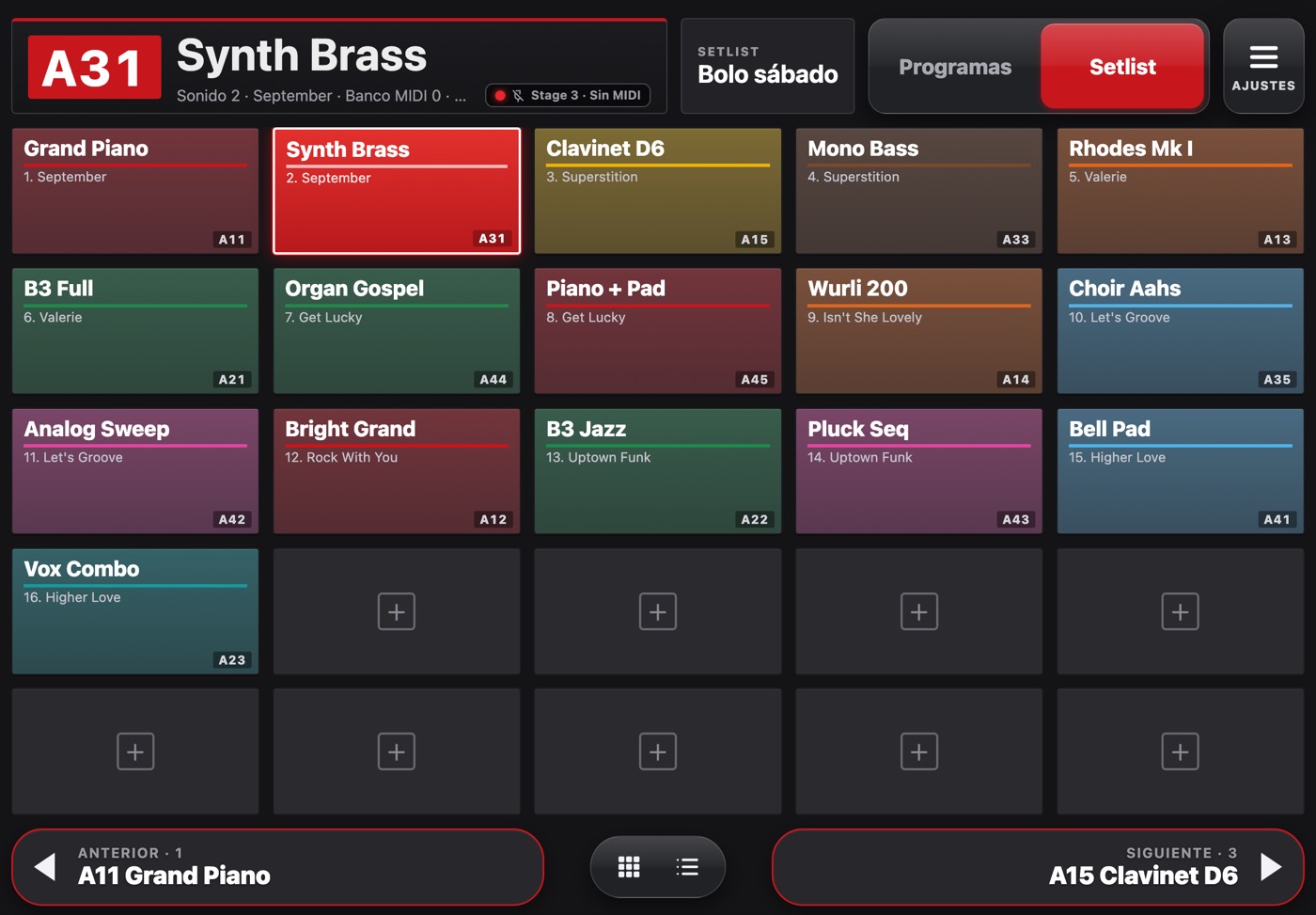
A setlist on iPad: each pad is the sound for one song.
2Before you start
You need:
- A supported keyboard: Nord Stage 2, 3 or 4, Nord Electro 6 or 7, Yamaha CP, YC or CK, Sequential Prophet Rev2 or Novation Bass Station II.
- A USB cable to the iPad or iPhone (with Lightning, Apple's camera adapter) or a Bluetooth MIDI adapter such as the CME WIDI.
- With a Nord, a computer with Nord Sound Manager to bring over the sound names (just once).
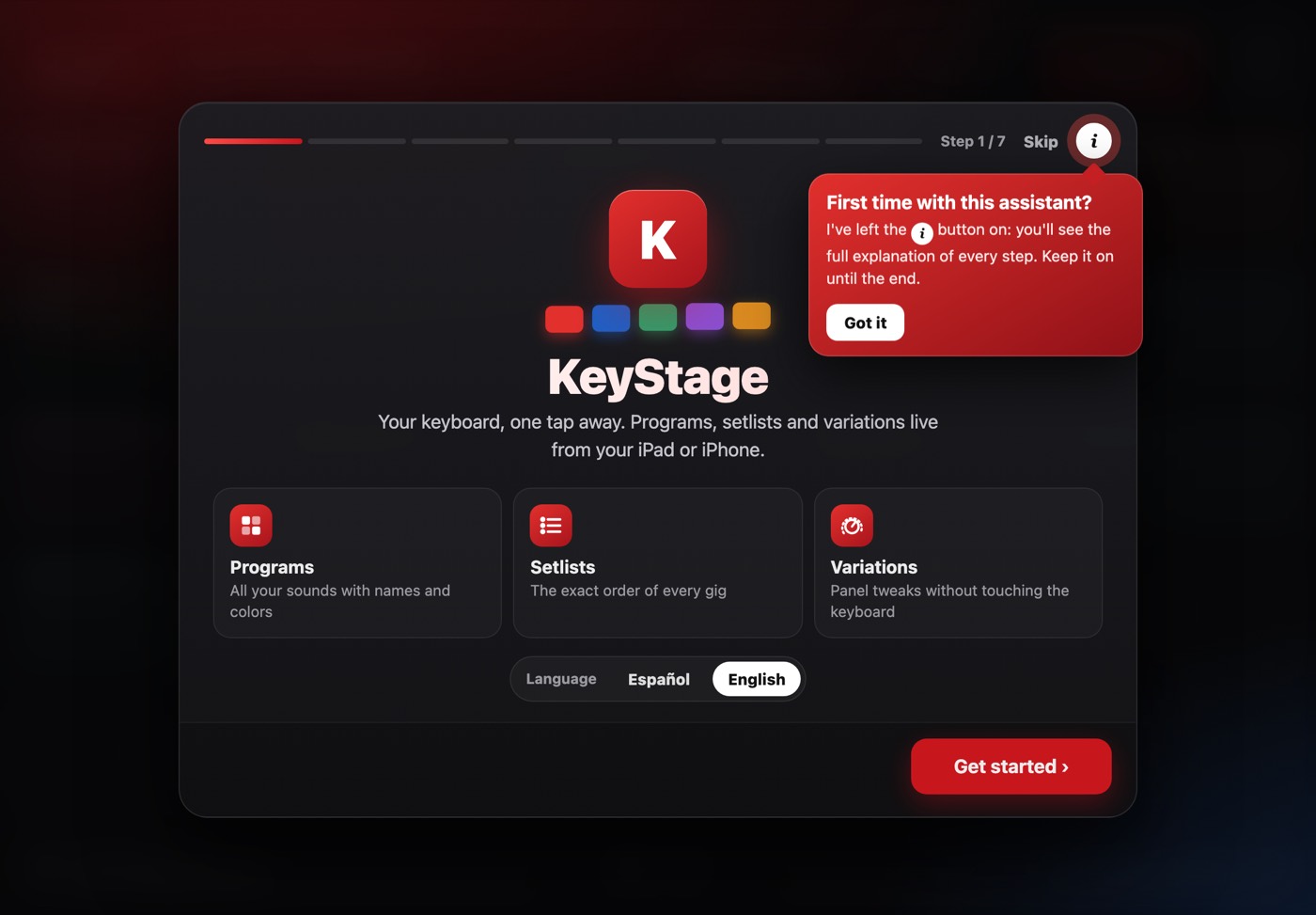
The first time, the setup wizard opens: language, connection and your keyboard, step by step.
- 1App language.
- 2Start the wizard: it guides you step by step until you play.
- 3Skip it if you know it. You can see it again in Settings → Help.
3Set up your keyboard
The keyboard has to accept program and control changes over MIDI, on the same channel as KeyStage. The wizard tells you what to change on your model; here is the summary.
| Keyboard | Where | Set |
|---|---|---|
| Nord Stage 2 / 3 / 4 | System → MIDI (Shift + System on Stage 3 and 4) | Global Channel = KeyStage's · Program Change Mode = Send & Receive · Control Change Mode = Send & Receive · Stage 4: CC Type = CC & NRPN |
| Prophet Rev2 | GLOBAL | MIDI Channel · Param Send / Receive = NRPN · for the library: MIDI SysEx Cable = USB |
| Bass Station II | Function + key | MIDI Channel (upper G#) · Local (upper A) |
| Yamaha CP / YC | [MENU] → General → MIDI Settings | Channel and Program Change / Control Change receive |
4Connect your iPad or iPhone
With a USB cable
- Plug the cable into the keyboard's USB port and your iPad or iPhone.
- Open KeyStage: the connection indicator at the top turns green.
- Tap any pad: the keyboard switches program.
With Bluetooth (WIDI or similar adapter)
- Plug the adapter into the keyboard's MIDI IN (and the second one, if any, into MIDI OUT).
- Tap the connection indicator → Bluetooth → Find adapter…, choose it and tap Connect.
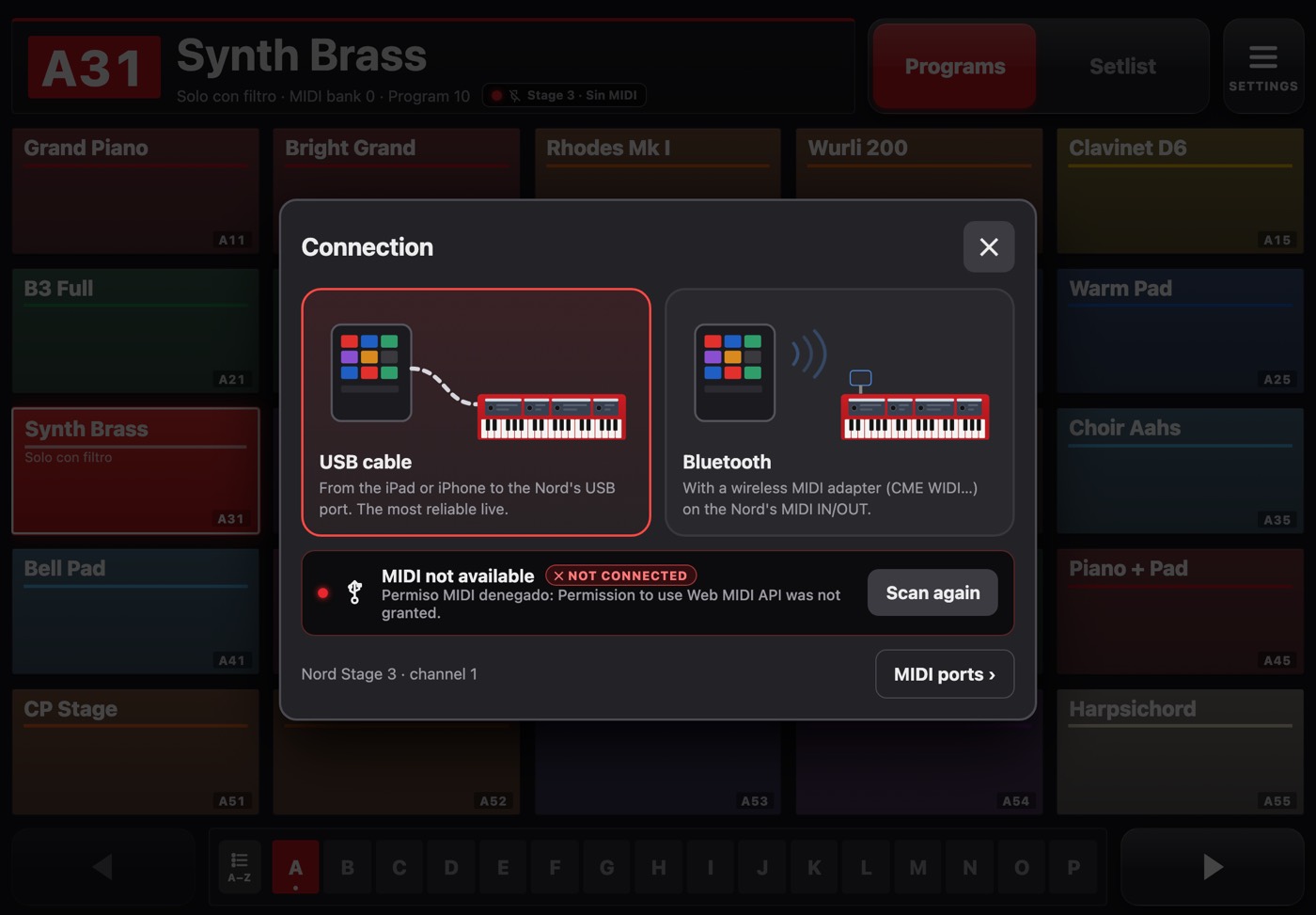
The Connection window opens when you tap the indicator at the top.
- 1USB cable connection.
- 2Search for the keyboard again.
- 3Advanced MIDI port settings.
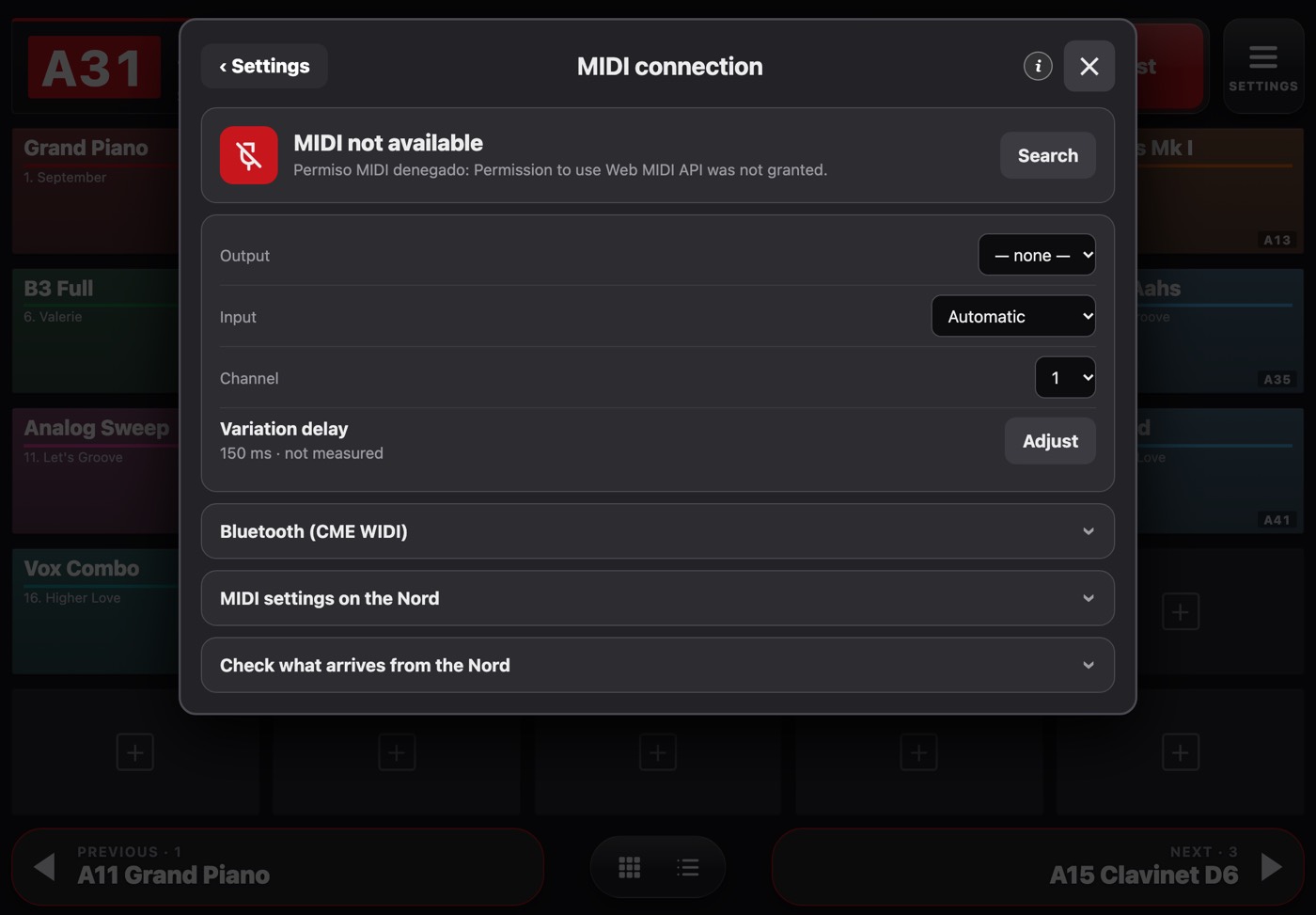
Settings → MIDI ports, to choose ports, channel and the variation delay.
- 1Output: where KeyStage sends changes.
- 2Input: what comes from the keyboard (MIDI monitor and knobs).
- 3MIDI channel. It must match the keyboard.
- 4Variation delay: how long it waits before sending changes.
- 5Search for ports again.
5My keyboards
Each keyboard has its own profile: model, MIDI channel, sound names and connection. When you pick one, the whole app (banks, edit panel, MIDI messages) adapts to it. Plug it in via USB and KeyStage recognises it.
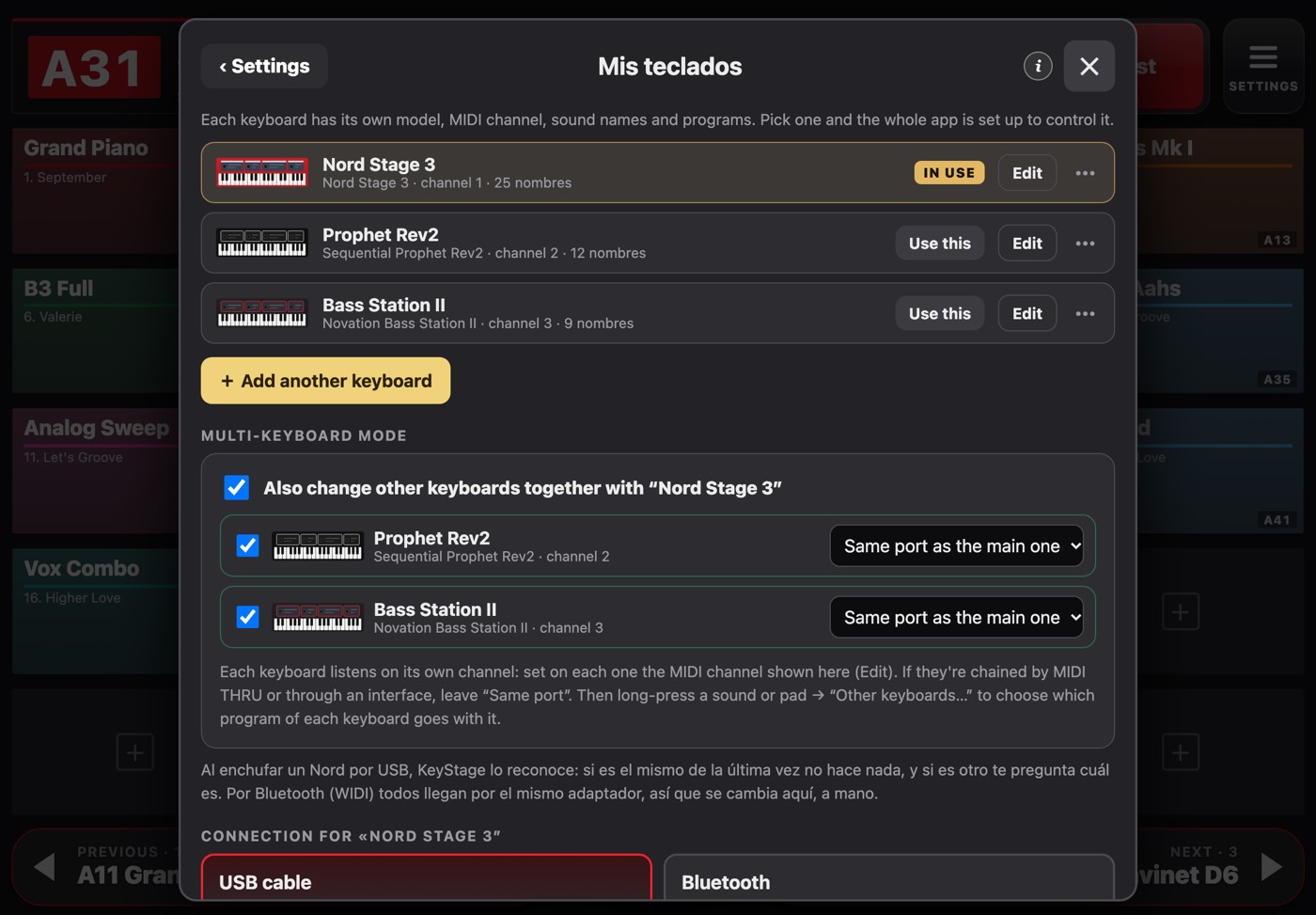
Settings → My keyboards.
- 1Your main keyboard: model, channel and connection.
- 2Add another keyboard from your rig.
- 3Turn on multi-keyboard mode.
- 4Port used by each keyboard.
6Sound names
Nord
Nords don't send names over USB or Bluetooth: only Nord Sound Manager has them. You bring them over once from the computer.
- Connect the Nord to the computer and open Nord Sound Manager.
- File → Export Sound Lists… and save the lists in an iCloud Drive folder (e.g. “KeyStage”). KeyStage only uses the Program list.
- In KeyStage: Settings → Sound names → choose that folder. From then on it checks it every time it opens.
Other keyboards
Paste a list in Settings → Sound names → Paste list: one line per sound, starting with its number on that keyboard (U1-012 Big Pad on the Rev2, 3-5 Piano on Yamaha, 000 Bass on the Bass Station). Leading zeros are optional. The Rev2 and Bass Station II can also read their names over USB from their library.
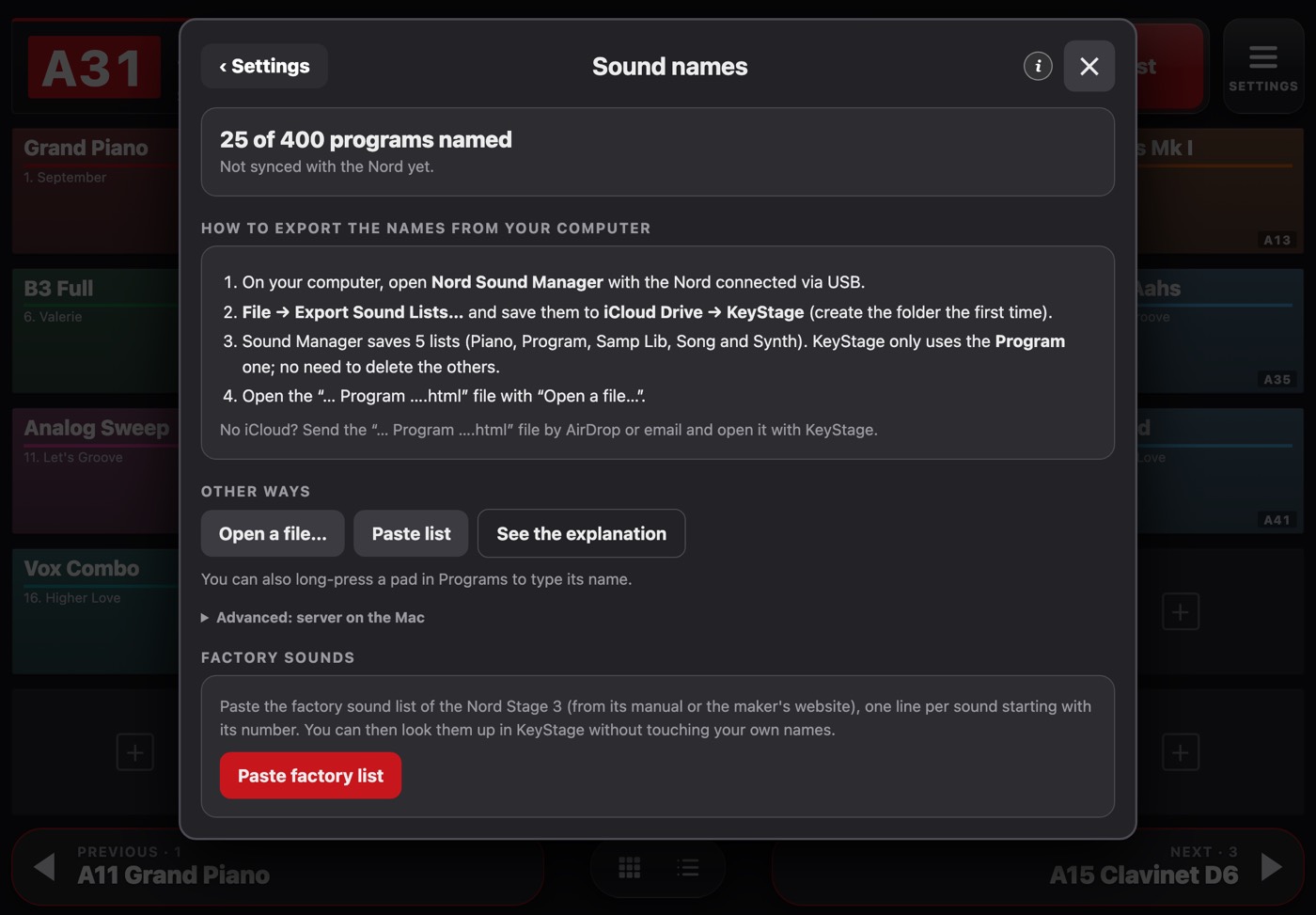
Settings → Sound names.
- 1Open the files exported by Nord Sound Manager.
- 2Paste a list of names (any keyboard).
- 3The keyboard's factory names.
7Programs mode
This is the view of all your keyboard's programs, by bank. Tap a pad and the keyboard switches program.
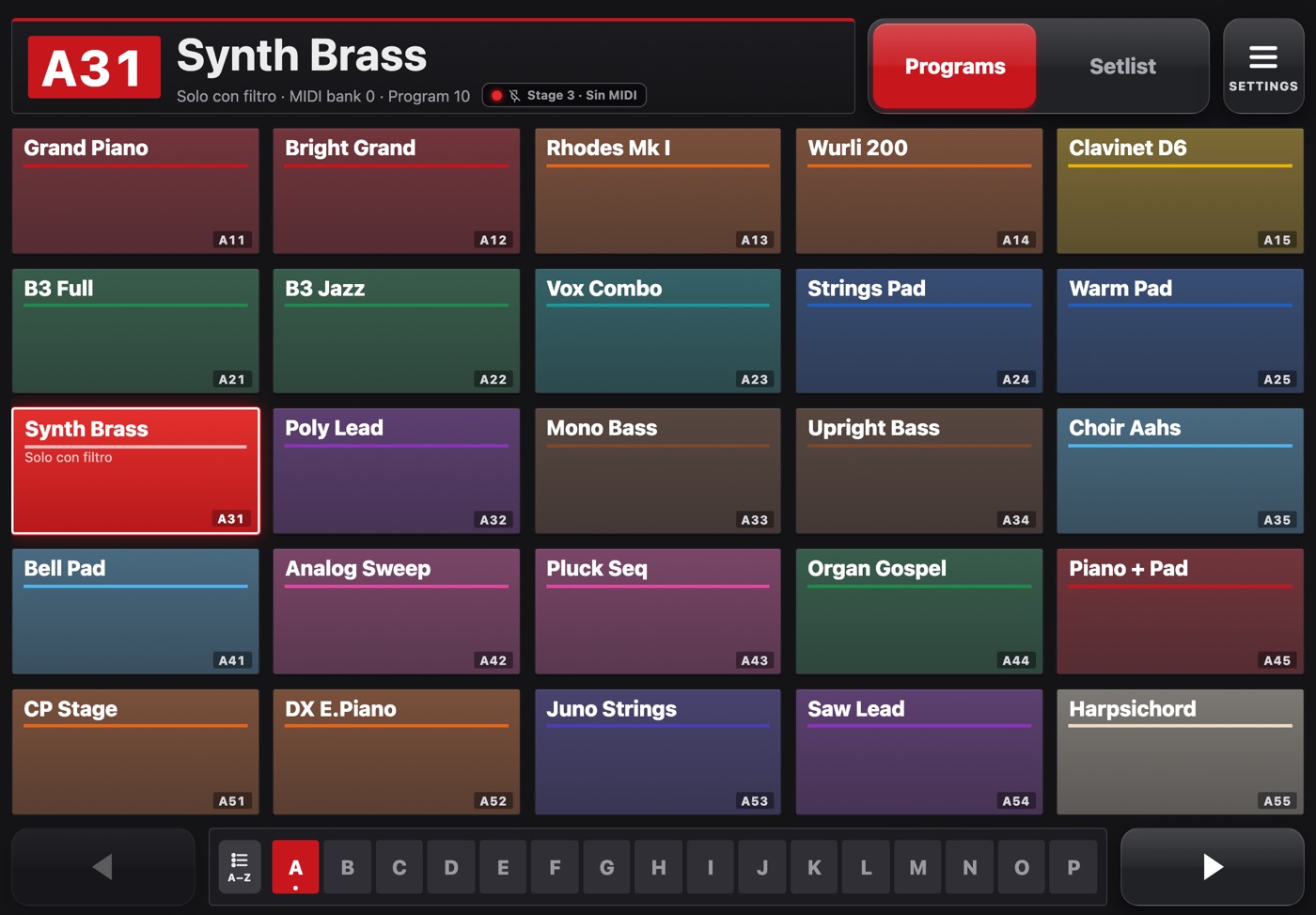
Programs mode on iPad.
- 1Current sound: location, name and note.
- 2Connection status. Tap it to open the Connection window.
- 3Switch between Programs and Setlist.
- 4Settings.
- 5Tap a pad to send that program. Press and hold it to edit it.
- 6Alphabetical list of every sound, with search.
- 7Next bank or page (or swipe).
Edit a sound
Press and hold a pad to set its name, note or colour, add it to a setlist or create a tweaked version.
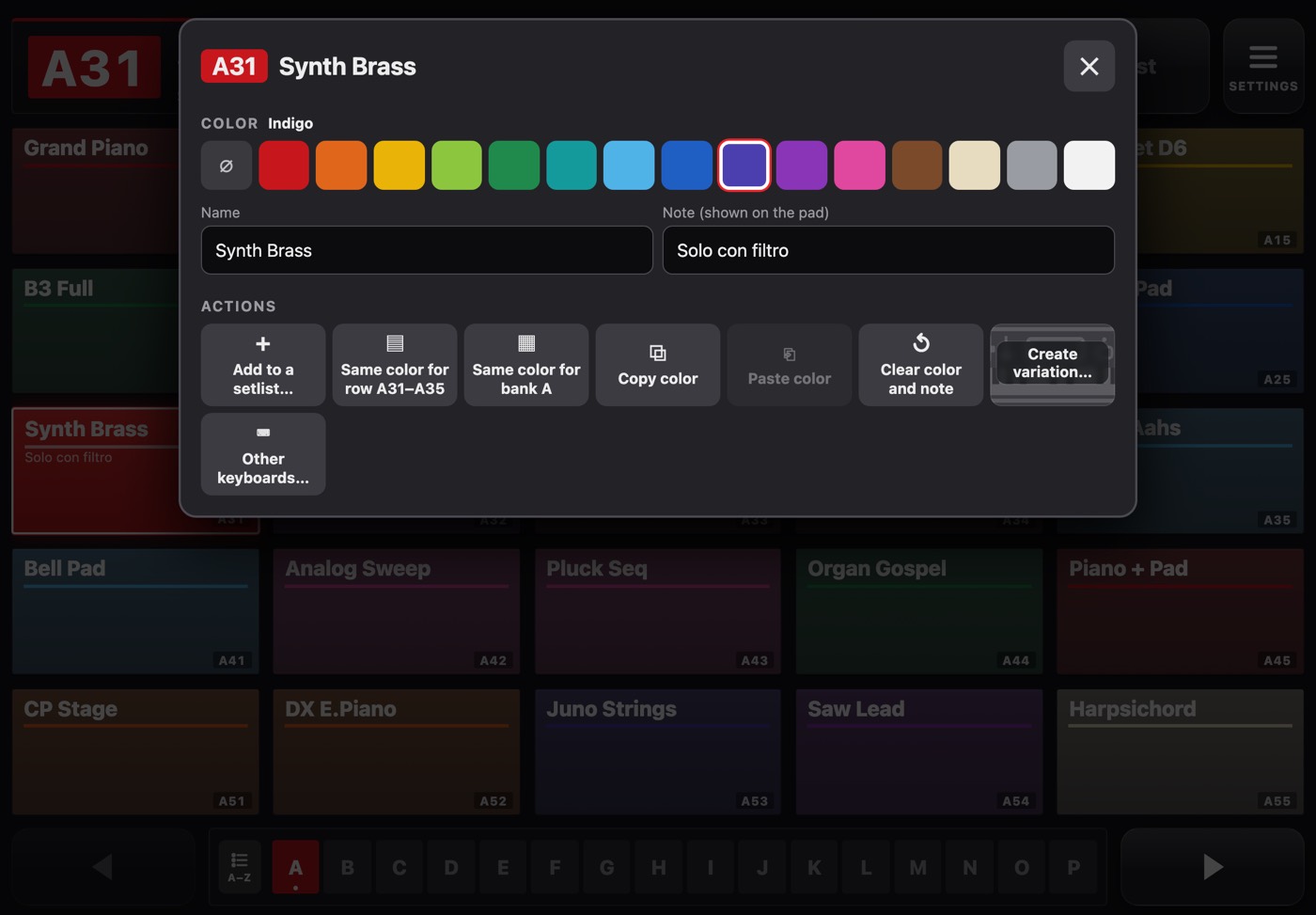
When you press and hold a pad.
- 1Sound name.
- 2Note shown on the pad.
- 3Pad colour.
- 4Create a version of this sound with your tweaks.
- 5Other keyboards that switch at the same time.
- 6Add it to a setlist.
8Setlists
A setlist is the order of a gig: each pad is a sound for one song. Live, you just move to the next one, with the arrow or the pedal.
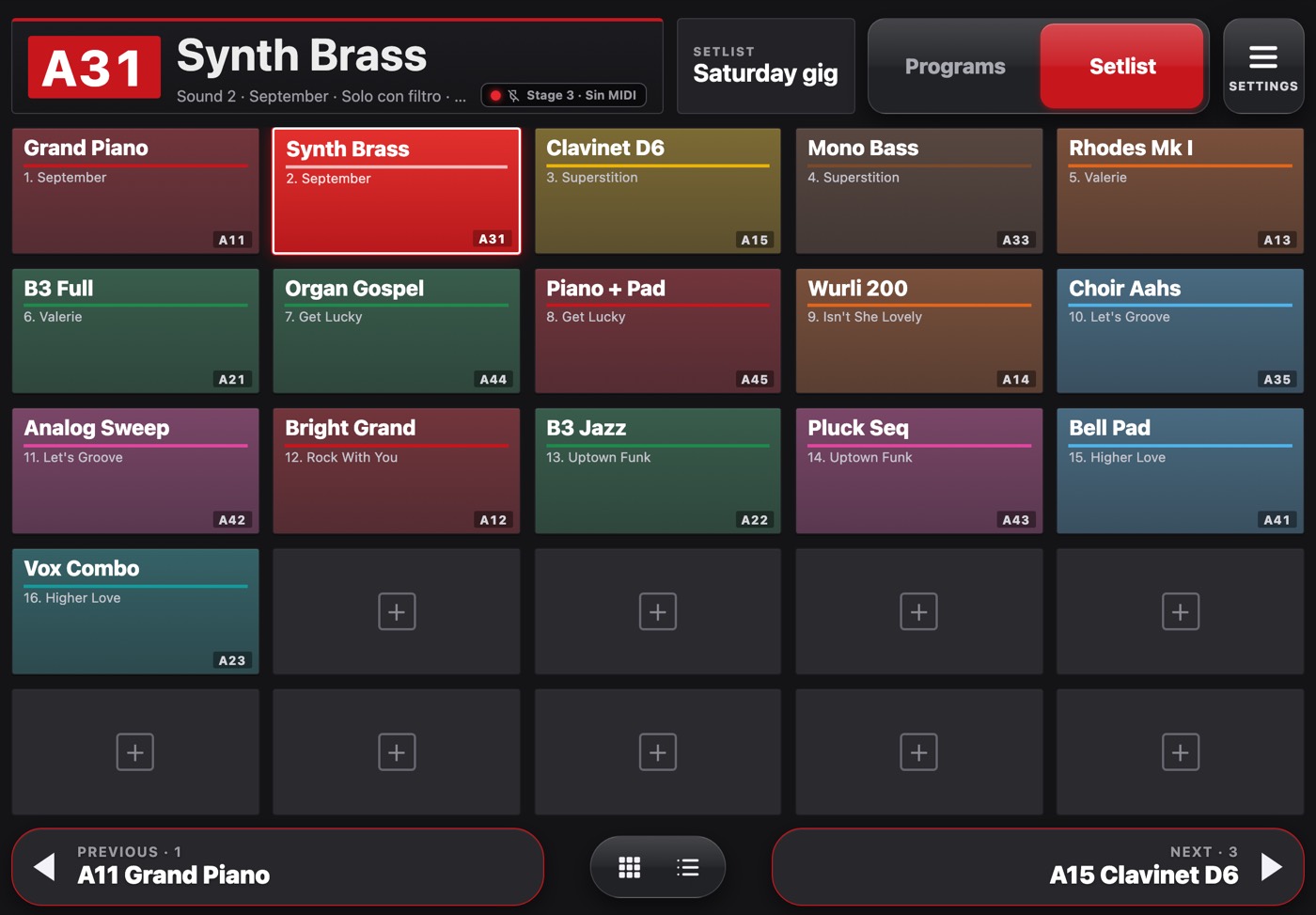
Setlist as a grid.
- 1Current setlist. Tap to switch or create one.
- 2The sound that's playing, with its song and position.
- 3Empty pad: tap + to add a sound.
- 4Previous sound.
- 5Next sound. The pedal does the same.
- 6Switch between grid and list.
- Create a setlist by tapping its name at the top (or in Settings → All setlists).
- Tap + on an empty pad and choose the sound.
- Press and hold a pad to set the song title, move it or tweak its sound.
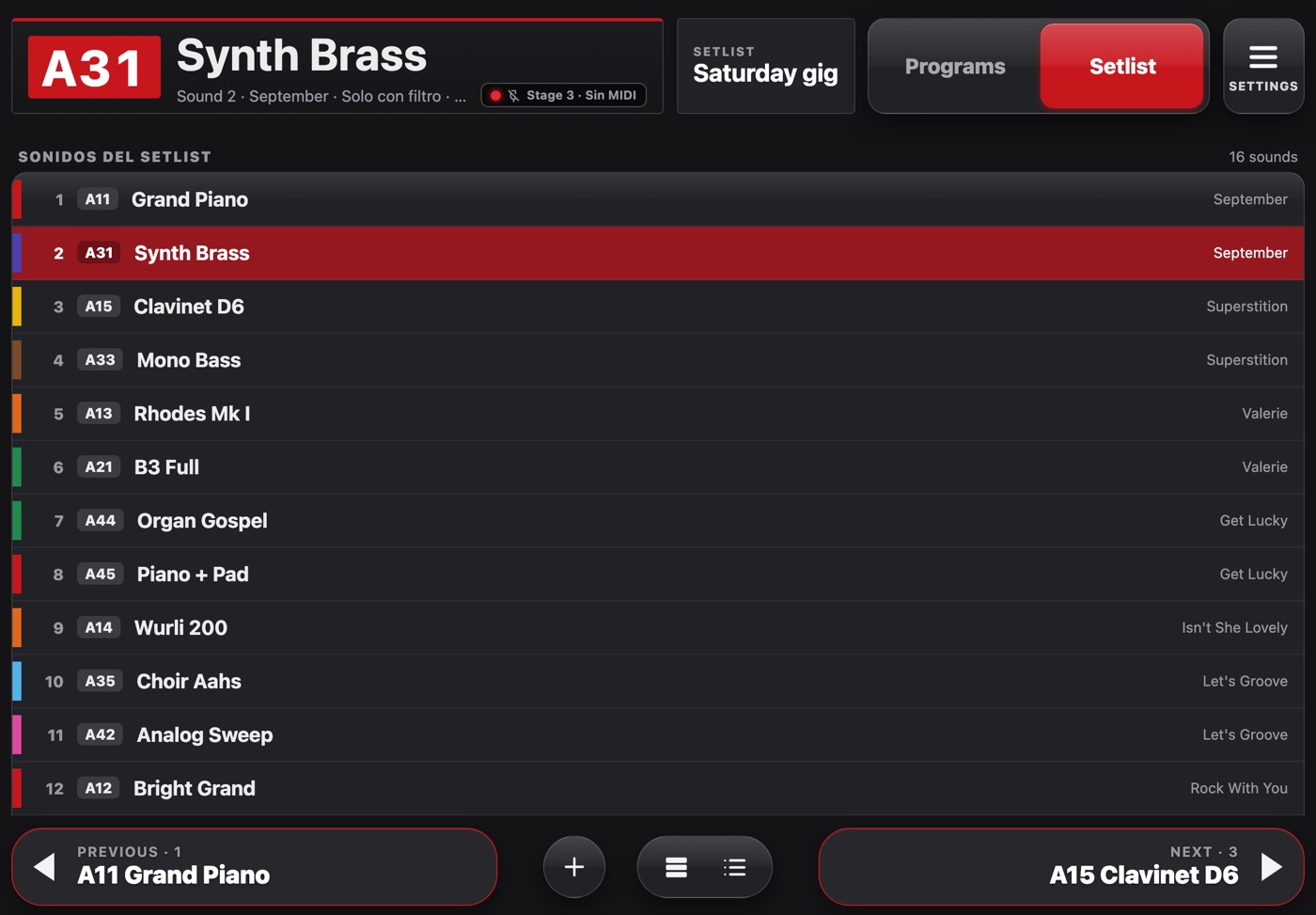
The same setlist as a list.
- 1List view: songs and sounds in order.
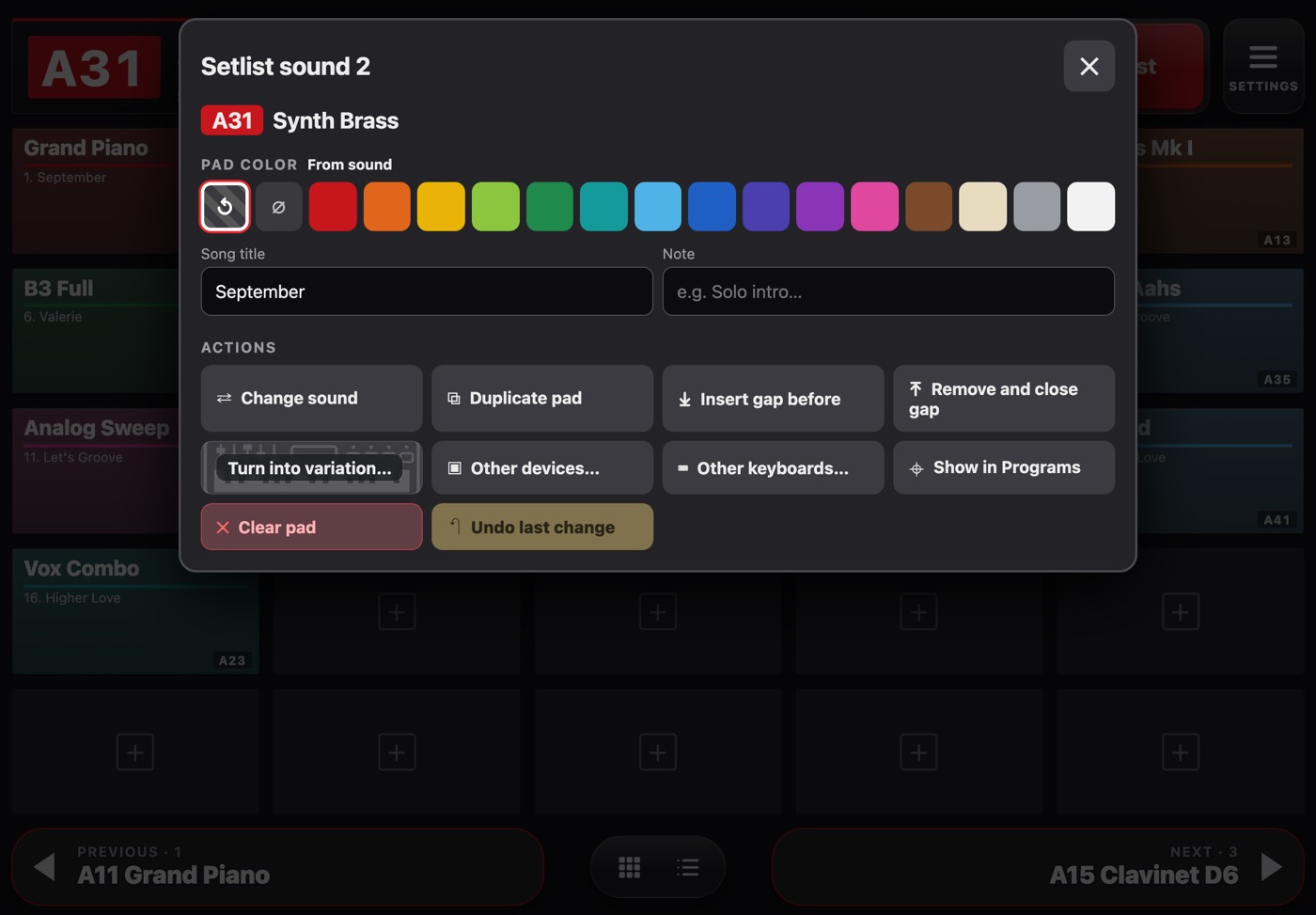
When you press and hold a setlist pad.
- 1Song title.
- 2A note for you (shown on the pad).
- 3Change this pad's sound.
- 4Tweak the sound for this song only.
- 5What the other keyboards play with this pad.
- 6forScore, MainStage or another MIDI device.
- 7Insert a gap to move pads along.
9Tweak your sounds for each song
Start from a program you already have on the keyboard and change it from KeyStage: more brightness, less reverb, a different attack. The change is stored in the app, not on the keyboard, so you don't need to fill it with near-identical presets.
- Press and hold a sound → Create variation (in a setlist: Turn into variation).
- A panel that looks like your keyboard opens. Drag knobs up or down and tap switches: you hear it on the keyboard right away.
- Name it and tap Save variation.
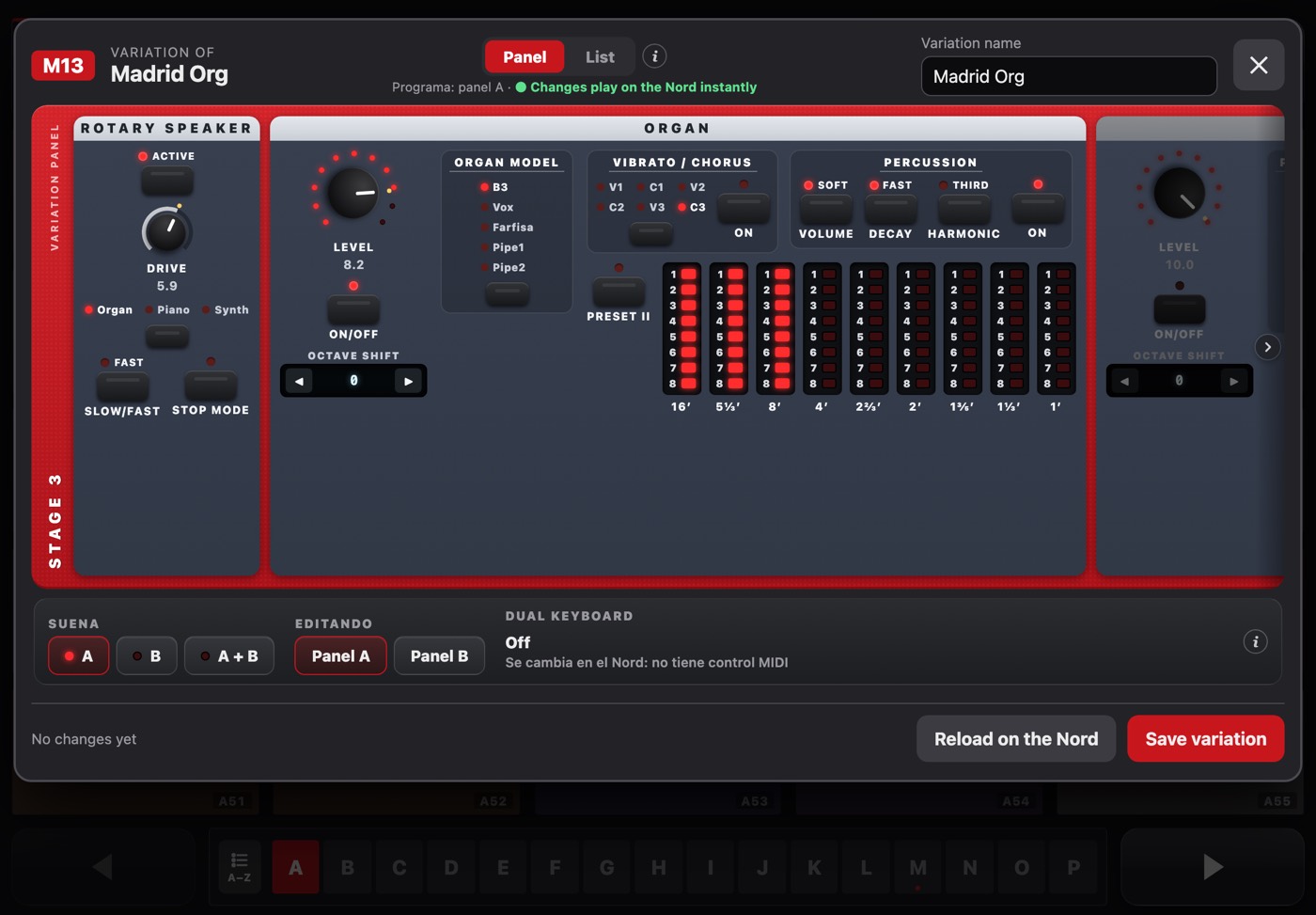
Nord Stage 3 panel.
- 1Name of this version.
- 2A panel like the keyboard's. Drag knobs up or down; double-tap returns to the program value.
- 3The same parameters as a list.
- 4Which panel plays and which one you edit (A / B).
- 5Reload the original program on the keyboard.
- 6Save your changes.
Every keyboard, with its own panel
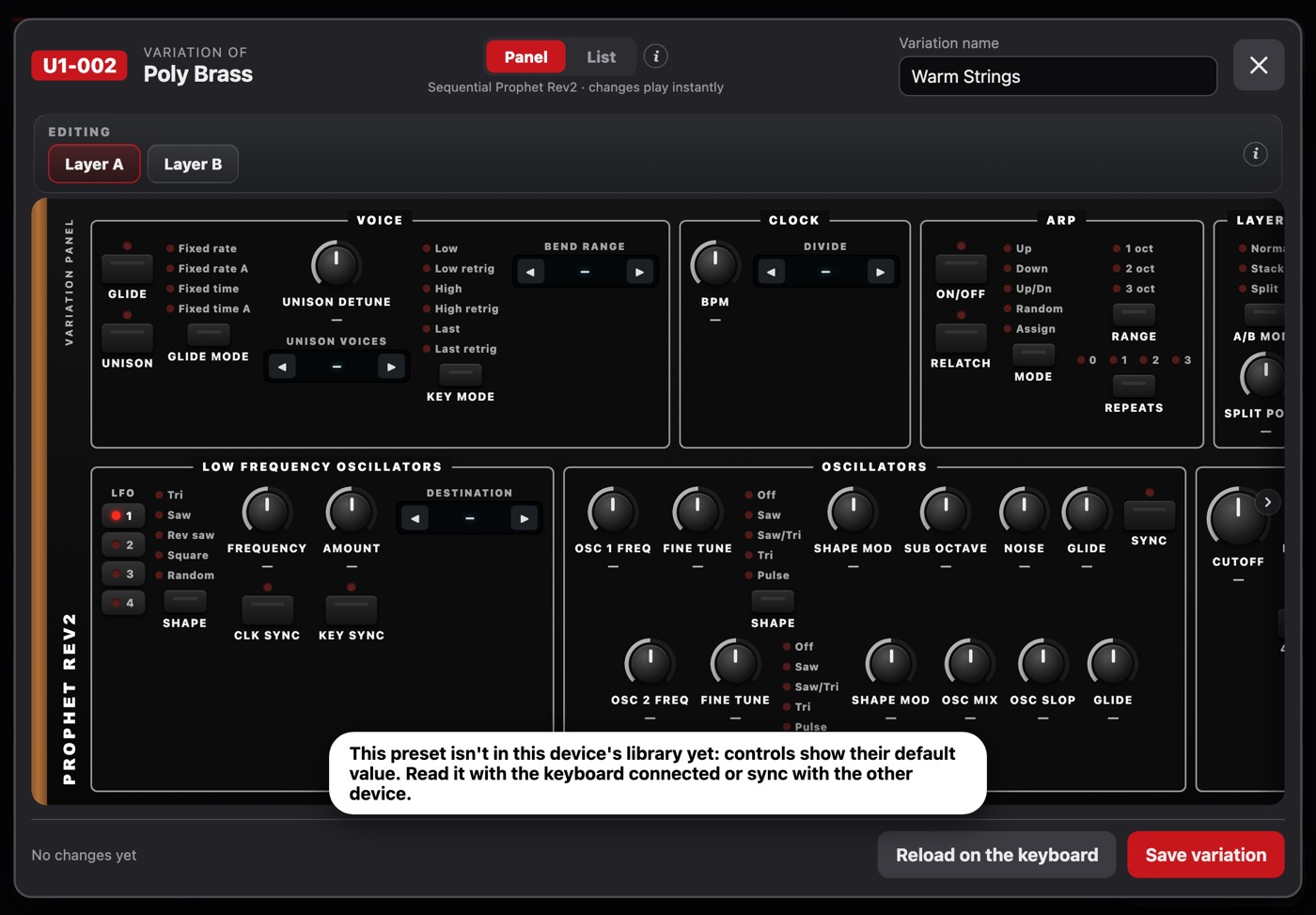
Prophet Rev2: layers A and B; move a knob on the Rev2 and the one on screen follows.
- 1Prophet Rev2 panel, with LFO 1–4 in tabs.
- 2Layer you are editing (A or B).
- 3Save the version.
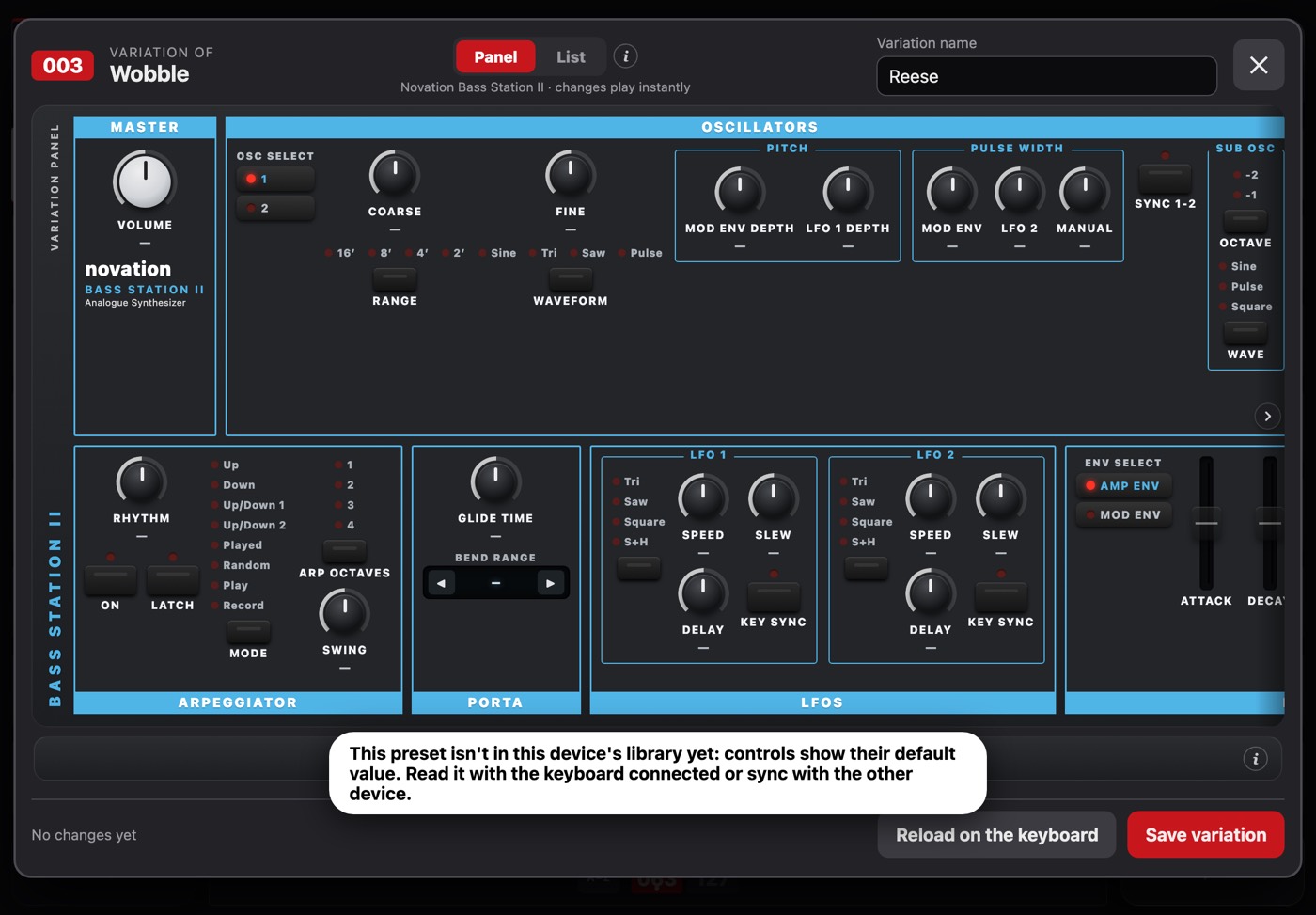
Bass Station II: with the preset's real values, read from its library.
- 1Bass Station II panel, in two rows like the keyboard.
- 2Save the version.
The delay
When you tap a tweaked version, KeyStage sends the program, waits for the keyboard to load it and then sends the changes. That delay is set per keyboard in Settings → MIDI ports → Variation delay; “Measure automatically” finds the minimum in about five tries.
10Several keyboards at once
- Add each keyboard in Settings → My keyboards, each on its own MIDI channel.
- Turn on multi-keyboard mode and tick the ones that should switch with the main one.
- Press and hold a pad → Other keyboards… and choose each one's program.
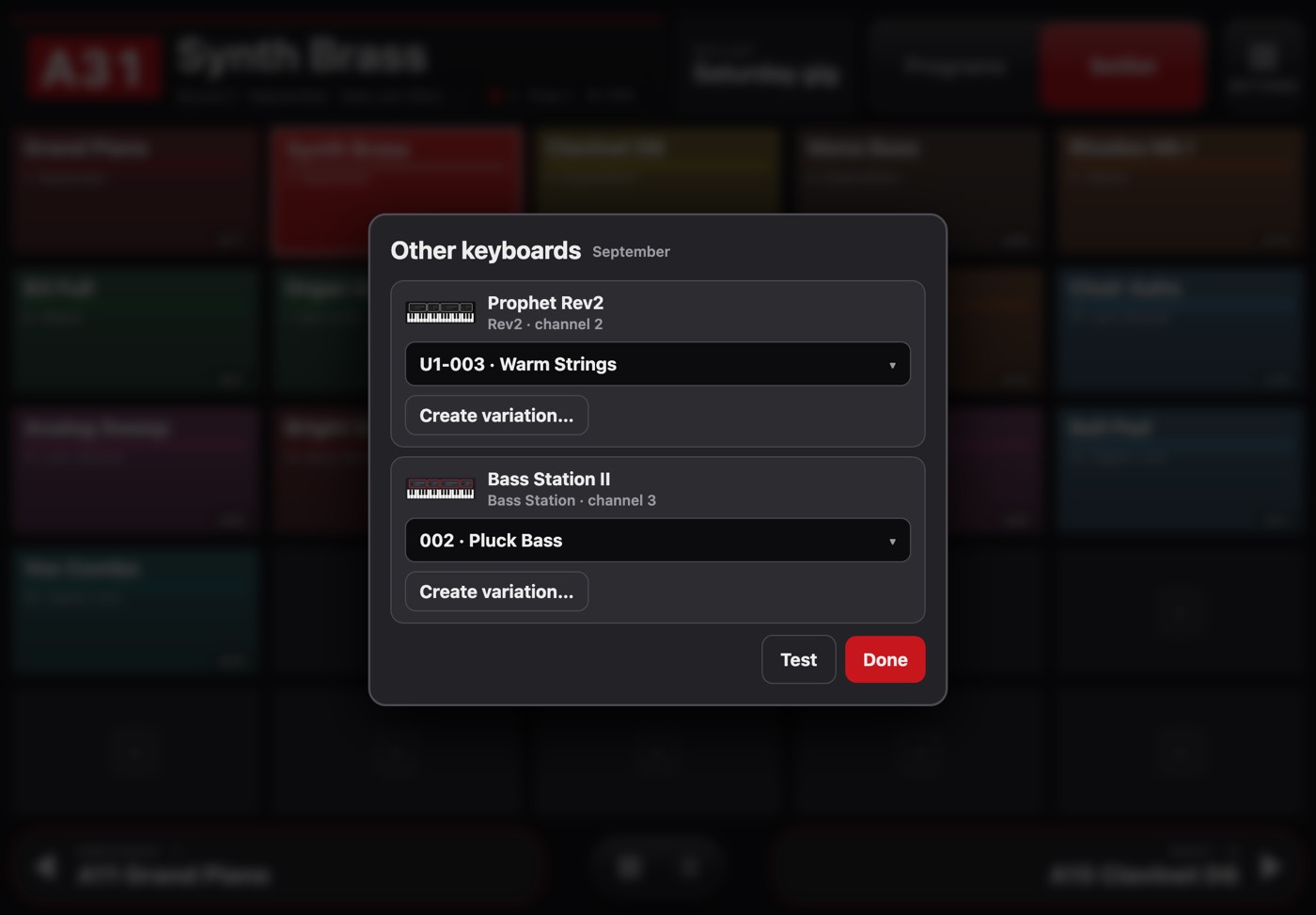
Other keyboards for a setlist pad.
- 1Each keyboard in your rig, with its channel.
- 2Program that keyboard plays with this pad.
- 3Tweak that keyboard's sound for this pad only.
- 4Try it without leaving.
11Bluetooth pedal
Page-turner pedals (AirTurn, BlueTurn…) work like a Bluetooth keyboard. Pair the pedal in the iPad or iPhone Bluetooth settings and turn it on in KeyStage: left goes to the previous sound, right to the next.
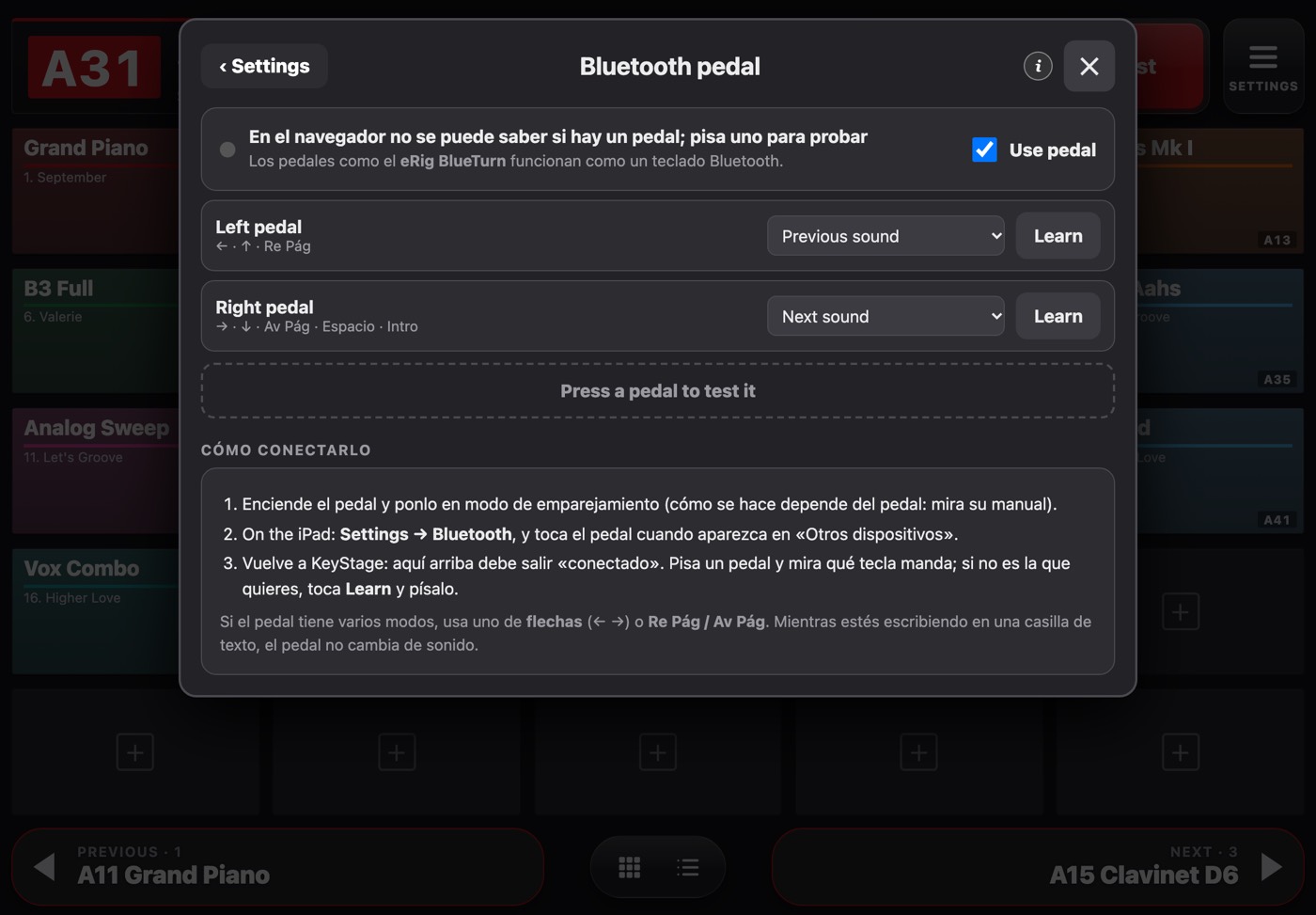
Settings → Bluetooth pedal.
- 1Turn the pedal on.
- 2What each pedal does.
- 3If your pedal sends another key, tap Learn and press it.
- 4Press a pedal to test it.
12forScore, MainStage and other devices
Each sound change can also send a MIDI message to other devices: open a score in forScore, switch a patch in MainStage, or any other MIDI destination.
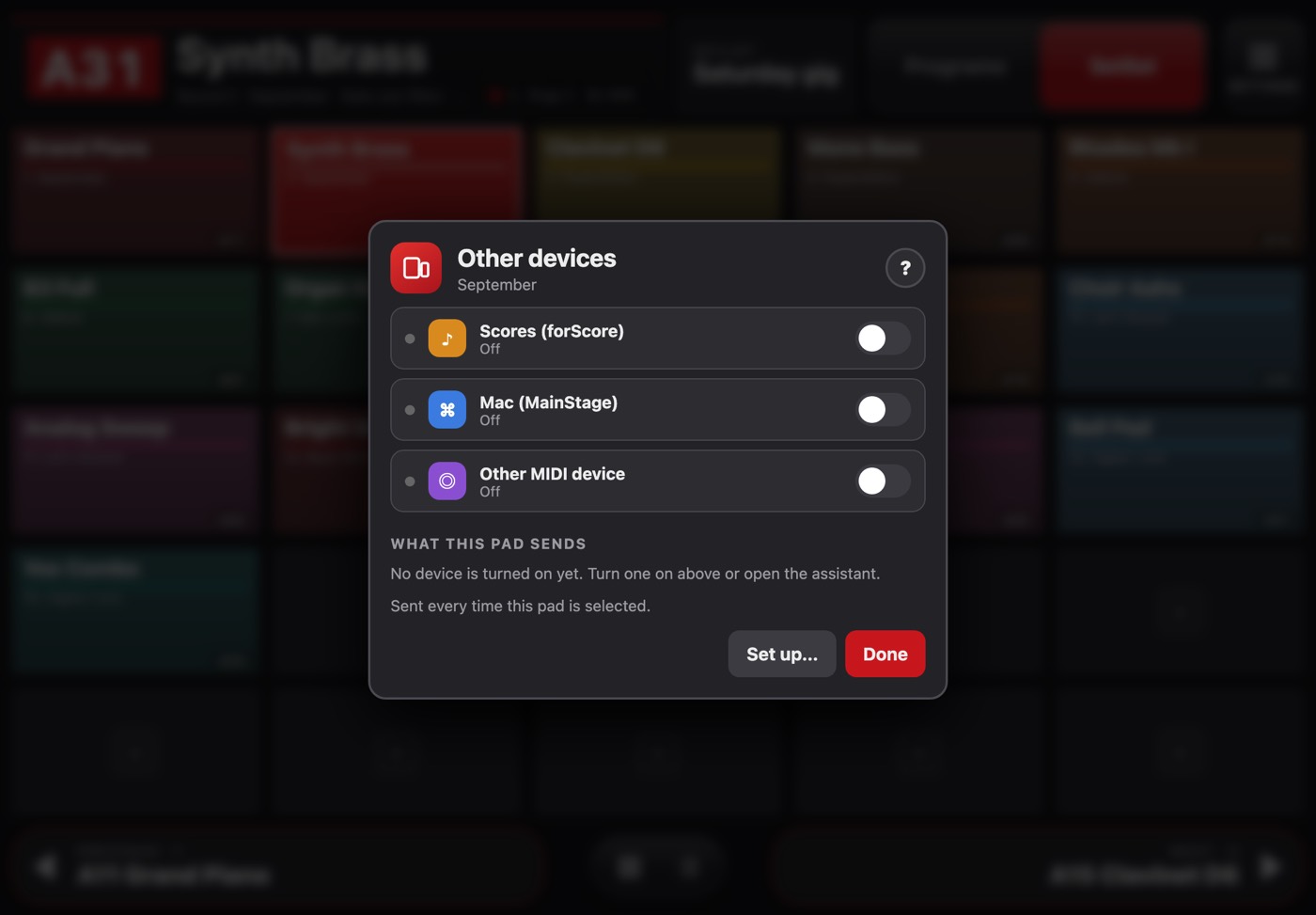
Press and hold a pad → Other devices…
- 1Open the score in forScore.
- 2Switch the MainStage patch.
- 3Any other MIDI device.
- 4Set up each device.
iPhone with KeyStage + iPad with forScore, no router
- On the iPhone: Other devices → Make visible over Bluetooth… (keep the window open).
- On the iPad: open KeyStage → Other devices → Connect to the iPhone over Bluetooth…, choose the iPhone and Connect. Then you can close KeyStage on the iPad.
- In forScore, for each score: metadata → MIDI → Open → + → Learn…, and in KeyStage tap Send next to that song (wizard, step 5).
MainStage
The “Mac (MainStage)” wizard guides you over Bluetooth, cable or Wi-Fi. Easiest in MainStage: patch list menu → Reset program numbers. Each pad can send any patch you like, different from the keyboard sound.
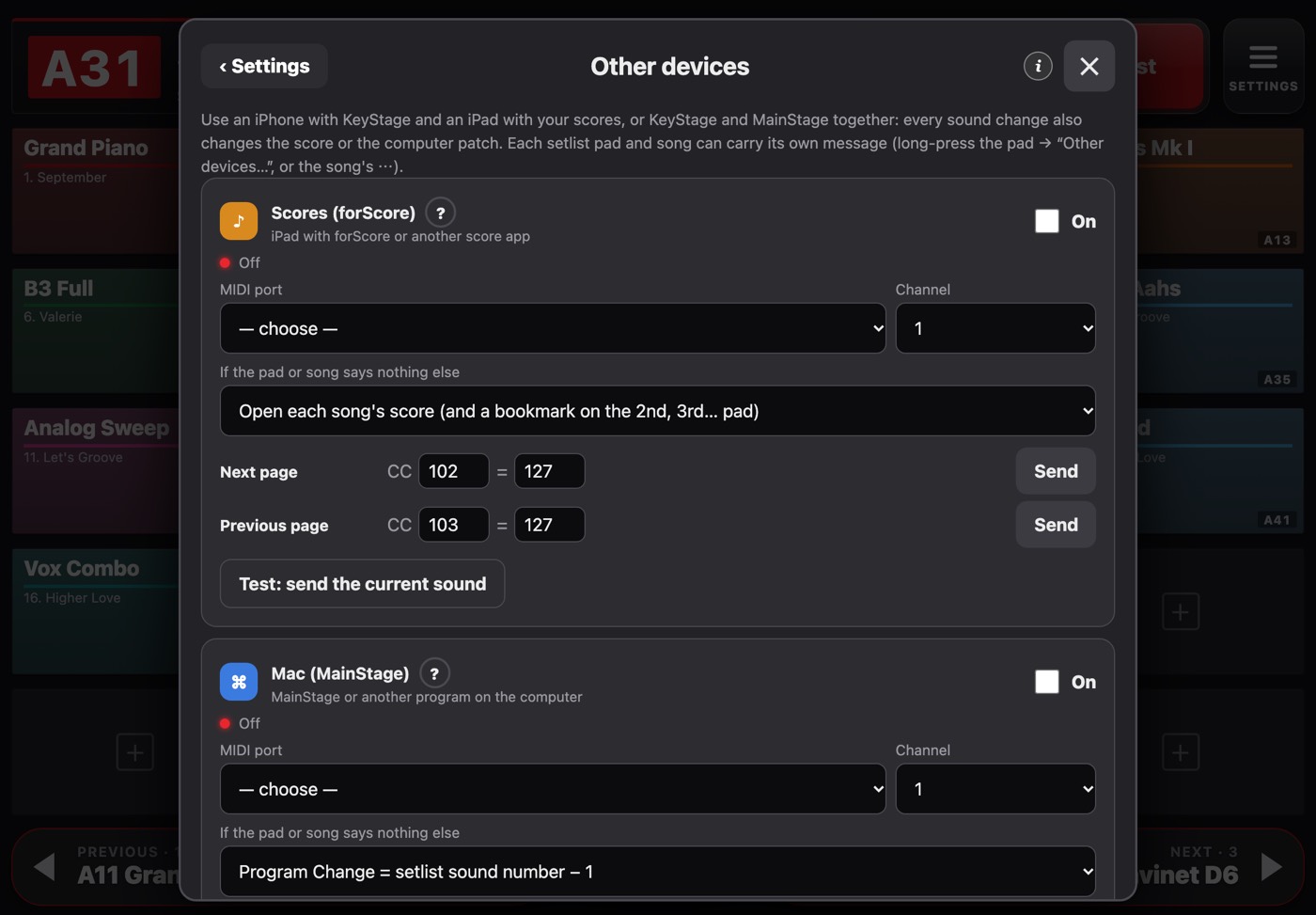
Settings → Other devices.
- 1forScore: port, channel and numbering rule.
- 2Turn pages with the pedal or from KeyStage.
- 3MainStage: port, channel and concert for each setlist.
13iPhone ↔ iPad and backup
- On both devices: Settings → Sync iPhone ↔ iPad → choose the same iCloud Drive folder.
- Setlists, folders, keyboard settings and added programs merge automatically when the app opens.
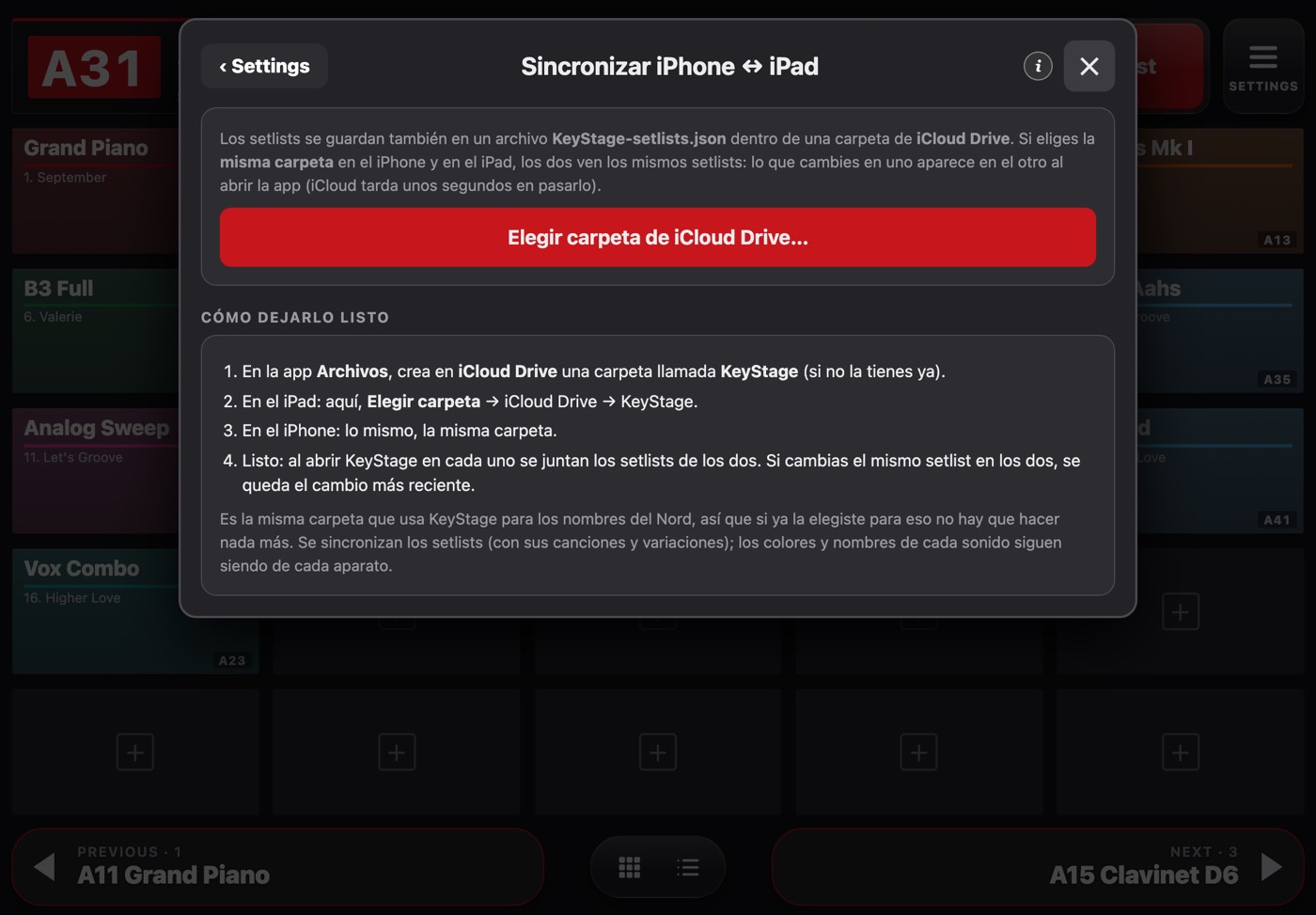
Settings → Sync iPhone ↔ iPad.
- 1Choose the same iCloud Drive folder on iPhone and iPad.
Backup: Settings → Backup → Export. It saves colours, names, notes, setlists and programs in one file.
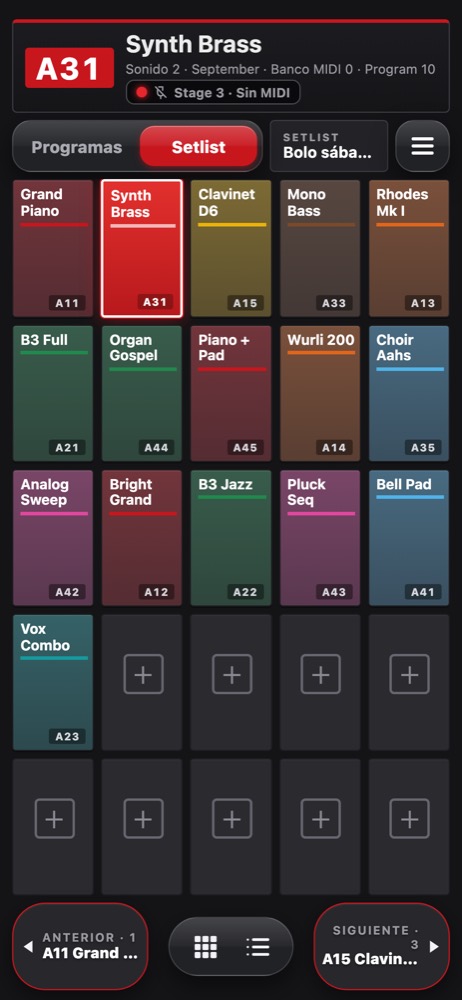
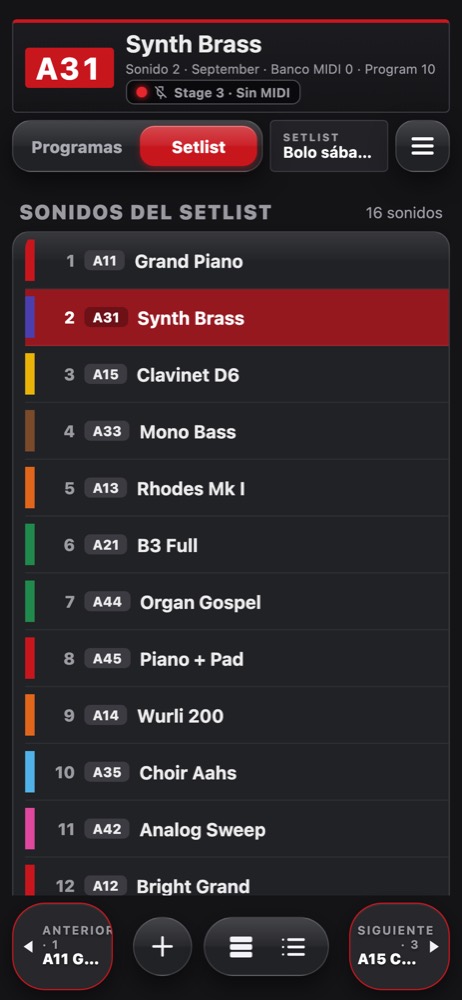
The same app on iPhone.
14Look and text size
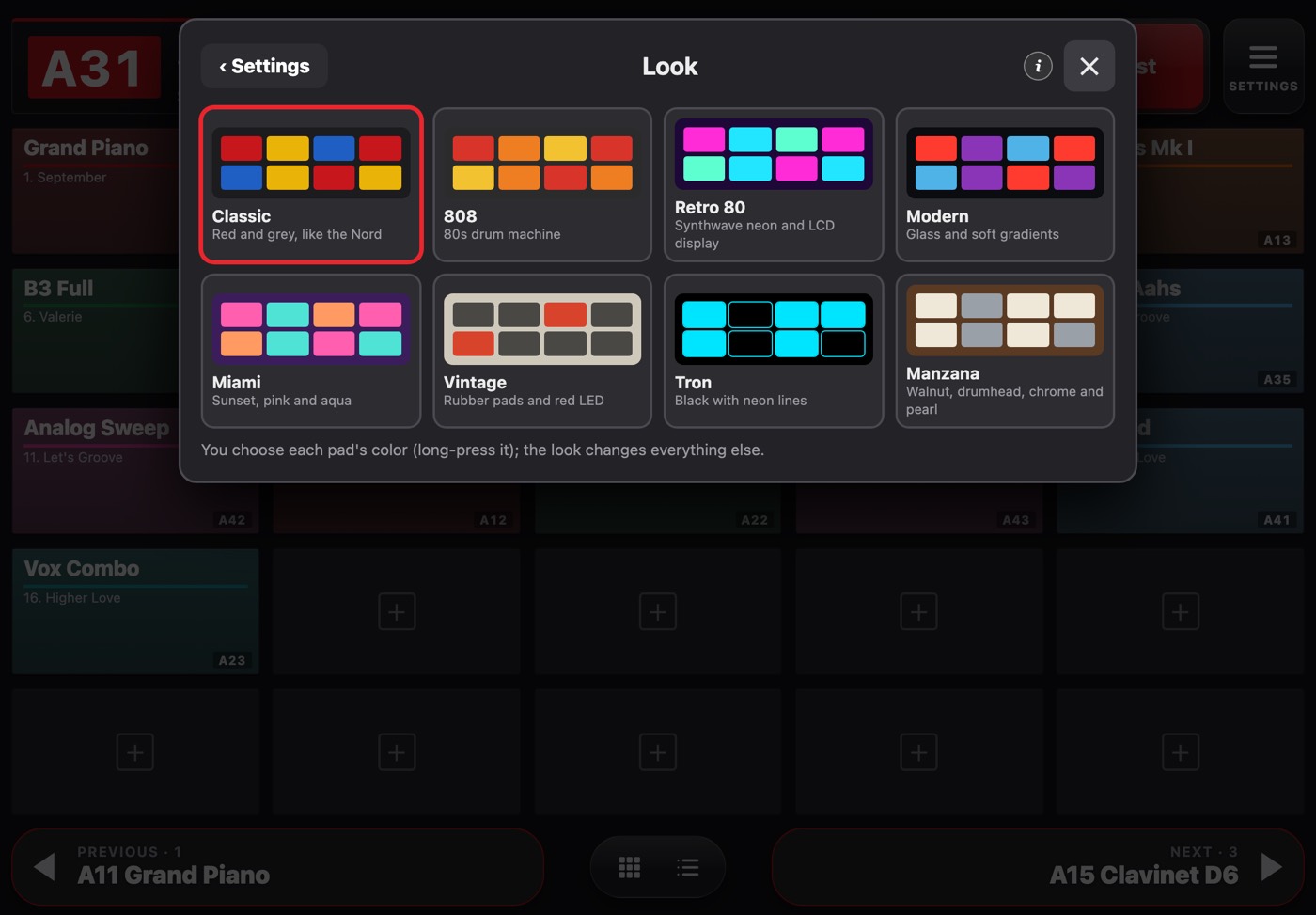
Settings → Look: several skins for the whole app.
- 1Choose the look of the whole app.
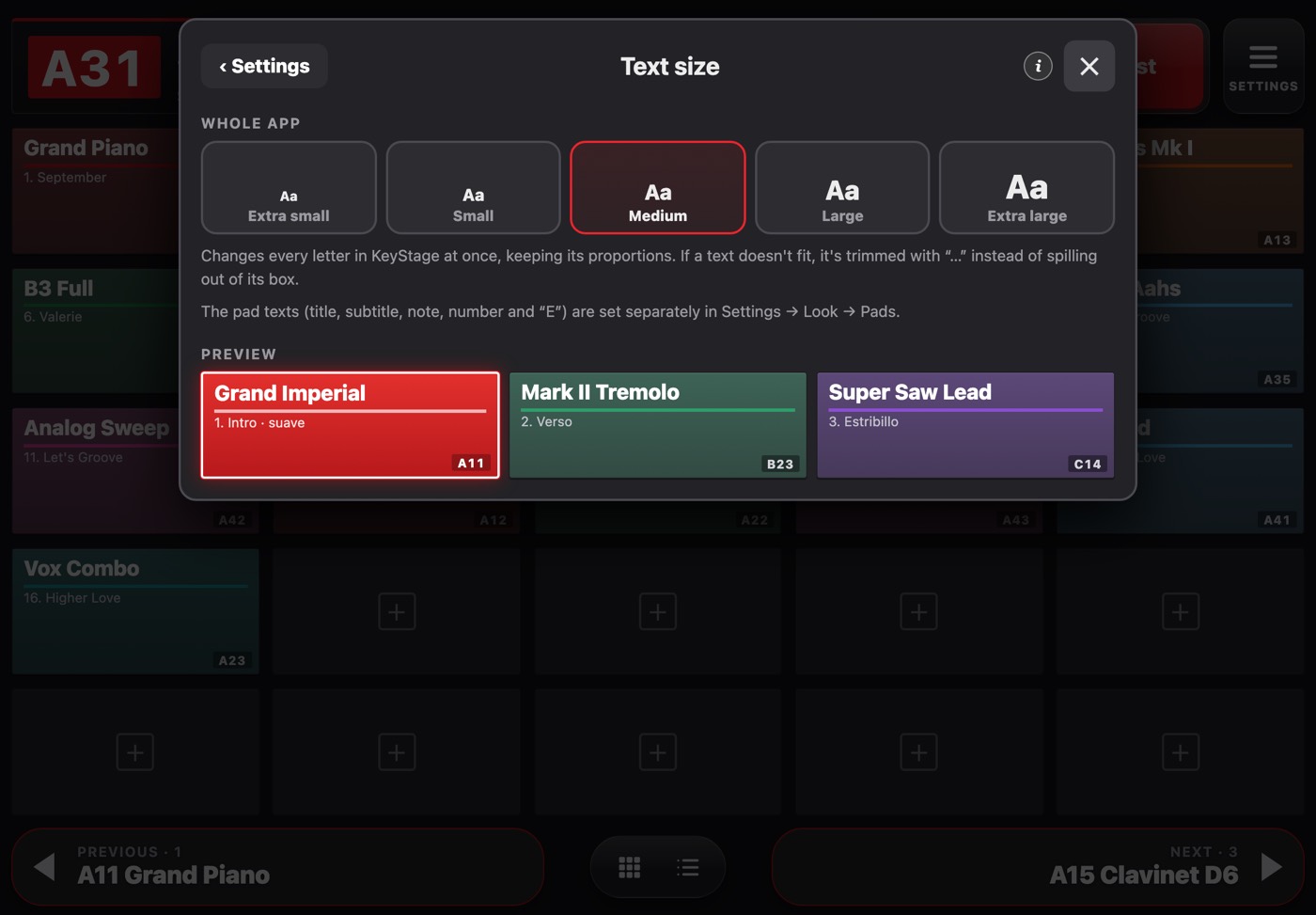
Settings → Text size: five sizes plus the pad title size.
- 1Text size for the whole app.
15MIDI monitor
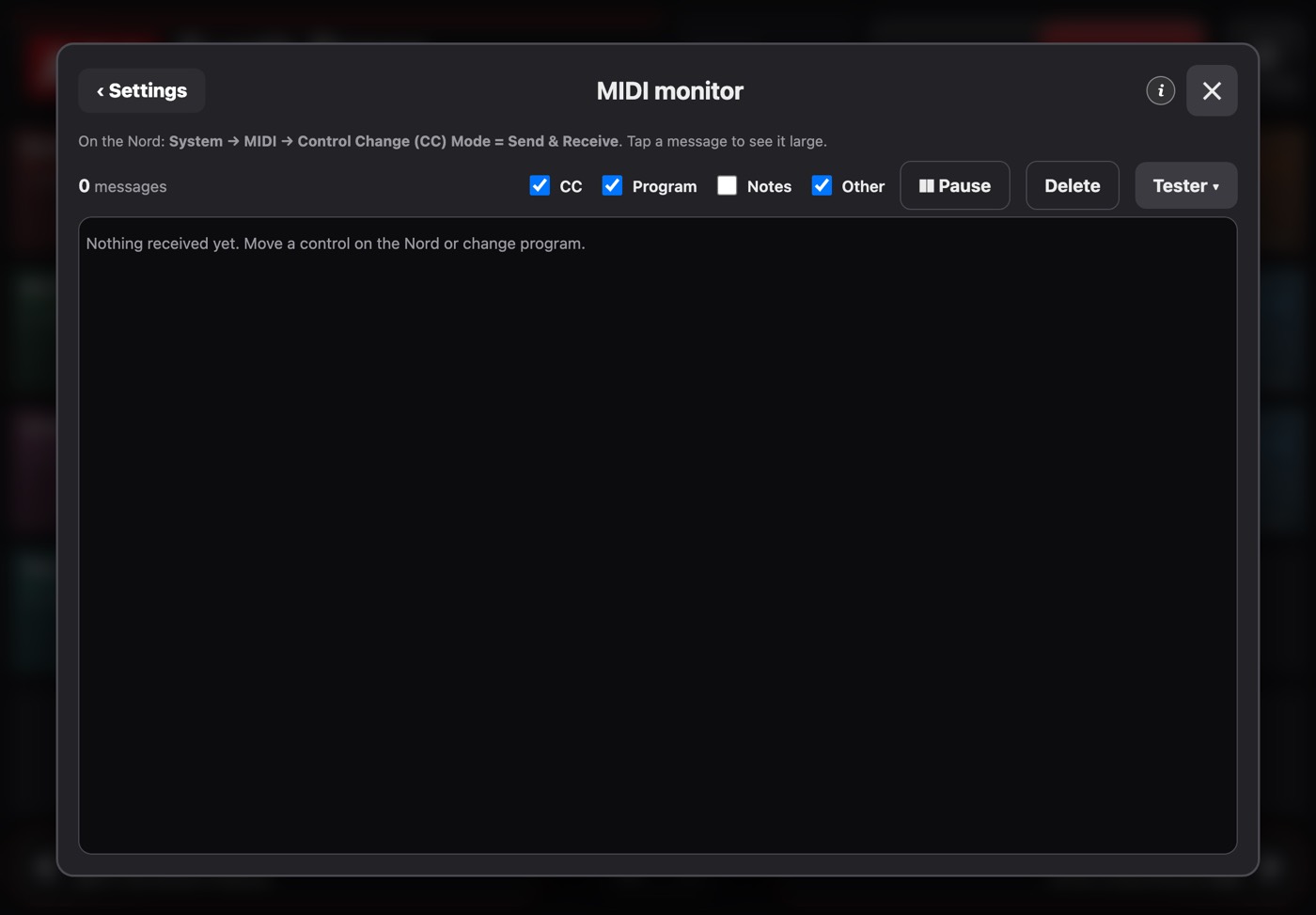
Settings → MIDI monitor.
- 1Everything received from and sent to the keyboard, with parameter names.
- 2Tester: send a parameter to check it.
- 3Pause the list.
16Prophet Rev2 and Bass Station II libraries
With these two keyboards, KeyStage keeps a copy of their programs by reading them over USB. Importing is read-only: KeyStage never writes to the keyboard's memory.
Prophet Rev2
- On the Rev2: Global → MIDI SysEx Cable = USB.
- Settings → Rev2 sounds → Rev2 library → Read the 8 banks (about 2 minutes) or Receive a dump.
- Names appear in your sounds automatically. “Send to Rev2” loads a program into the edit buffer: it plays but isn't stored.
Bass Station II
- Settings → Bass Station sounds → Bass Station library.
- On the keyboard: Function + the last white key (upper C), change onE to All with Value ▶ and press Function + that key again (Dump). KeyStage collects the 128 presets.
- Tap a preset to see its parameters or create a tweaked version with its real values.
17Troubleshooting
I tap a pad and the keyboard doesn't change
Check that the MIDI channel matches on the keyboard and in KeyStage, and that the keyboard receives Program Change. Look at the connection indicator at the top.
It switches to the wrong program
Check the model chosen in Settings → My keyboards: each model numbers its banks differently.
The pads have no names
That's normal the first time: bring them over with Nord Sound Manager or paste a list (see “Sound names”).
A tweaked version doesn't change something
Turn on Control Change receive on the keyboard (Stage 4: CC & NRPN). Some settings have no MIDI control. If it's unreliable, raise the variation delay.
The pedal doesn't change sounds
Check it's paired in the device's Settings and that “Use pedal” is on in KeyStage.
The Bluetooth adapter doesn't show up
Disconnect it from any other device (another iPad, your phone, the Mac) and search again.
18Help and updates
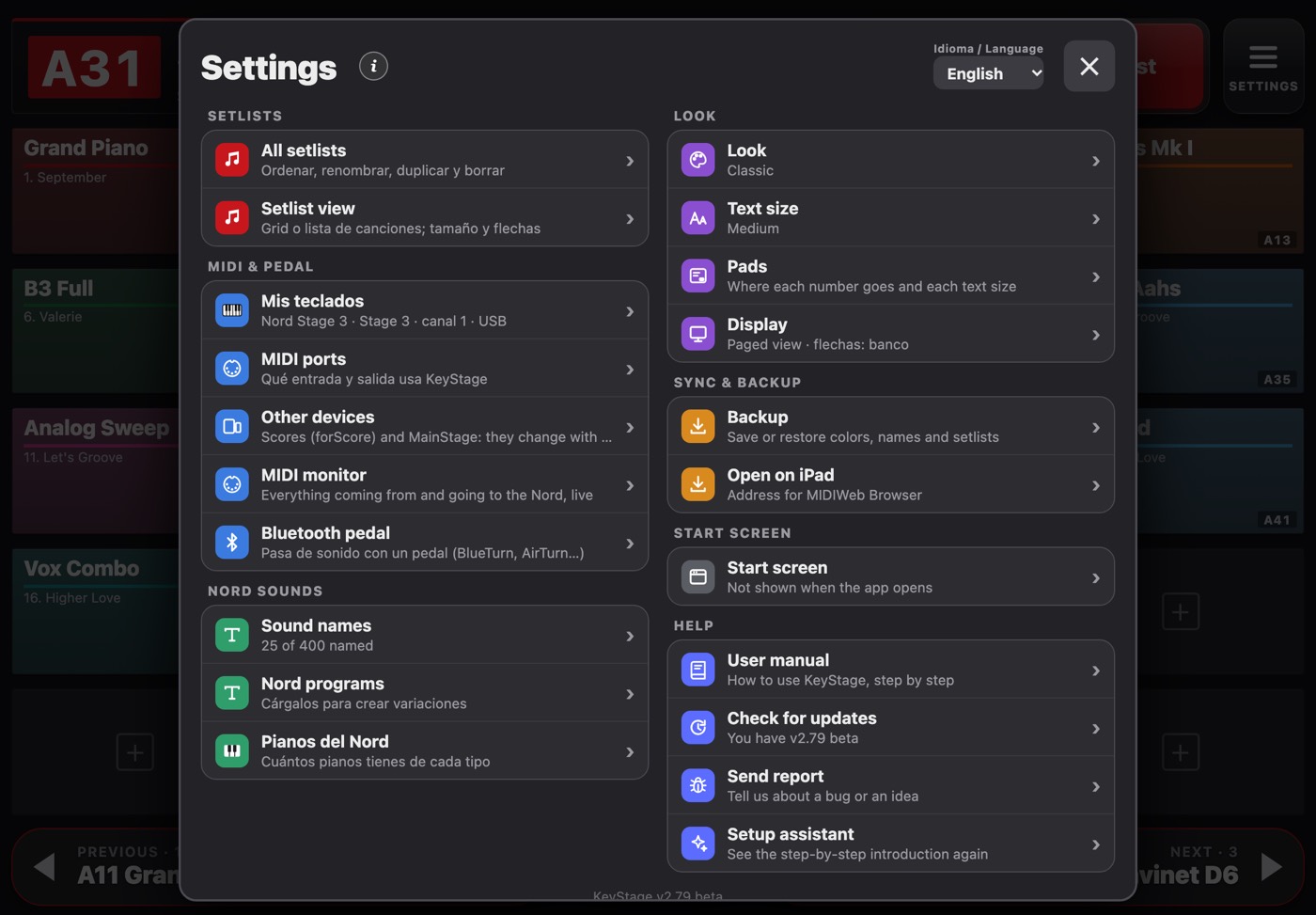
Settings: everything, grouped by topic.
- 1Your keyboards and multi-keyboard mode.
- 2Connection, channel and delay.
- 3Pedal to change sounds.
- 4This manual, inside the app.
- 5Language: Spanish or English.
- Check for updates looks for a new version on the App Store.
- Send report lets you tell us about a bug or an idea, with the technical details to fix it faster.
- More questions? Write to support.
KeyStage · Guide updated 10 November 2026